 Vantix
iPad and iPhone to TV
How to Connect an iPad or iPhone to a TV
There are three ways: a cable into the TV's HDMI port, AirPlay 2 to an Apple TV or AirPlay TV, or casting over Wi-Fi to Chromecast, Samsung, LG, Roku and Fire TV. Which one fits depends on your TV and on whether you want the whole screen or just a video.
Connect an iPad to a TV with a cable (USB-C or Lightning to HDMI)
A cable is the most reliable way, and the only one that works on any TV with an HDMI port, with no Wi-Fi at all. The TV mirrors the iPad's screen.
- Check the iPad's port. USB-C is on iPad Pro (2018 and later), iPad Air (4th generation and later), iPad mini (6th generation and later), iPad (10th generation and later) and iPhone 15 and later. Older models have Lightning.
- Get the matching adapter. For USB-C, a USB-C to HDMI adapter or cable that carries video, such as Apple's USB-C Digital AV Multiport Adapter. For Lightning, Apple's Lightning Digital AV Adapter.
- Connect the TV. Run an HDMI cable from the adapter to a free HDMI port on the TV, then choose that HDMI input with the TV remote.
- Plug in the iPad. Plug the adapter into the iPad. The TV shows the iPad's screen within a few seconds. For long viewing, connect the charger to the adapter's charging port.
A mirrored iPad screen is 4:3, so the TV shows black bars at the sides; many video apps switch to full-screen video on the TV while their controls stay on the iPad. iPads with an M-series chip can also use the TV as a second display with Stage Manager. Some streaming apps block copy-protected video over any cable or AirPlay, and the TV then shows a black screen or a message.
Connect an iPad to a TV wirelessly
Wireless needs the iPad and the TV on the same Wi-Fi. What you can send depends on what the TV understands.
AirPlay 2: Apple TV and AirPlay TVs
- Open Control Center on the iPad (swipe down from the top-right corner).
- Tap Screen Mirroring and choose the TV. If a code appears on the TV, type it on the iPad.
- To send only a video, tap the AirPlay button in the video player instead. The iPad stays free for other things.
AirPlay 2 is built into Apple TV and many recent Samsung, LG, Sony and Vizio TVs, and some Roku devices. On Samsung and LG sets it is switched on in the TV's settings, often under a menu named Apple AirPlay Settings.
Chromecast, Google TV, Roku, DLNA smart TVs and Fire TV
iPadOS has no built-in way to mirror to these. Apps such as YouTube have their own Cast button for their videos. For your own videos, photos and files, and for videos on web pages, a casting app does the job.
Vantix Cast is one, for iPhone and iPad (iOS 15 or later). It finds the TVs on your Wi-Fi and sends the video itself over Google Cast (Chromecast and Google TV), DLNA / UPnP (most Samsung and LG sets), Roku, or AirPlay 2. For any screen with a web browser, including a Fire TV with the Silk browser, it has a Web Receiver: open vantix.tv/receiver on the TV and enter the 5-digit TV code shown in the app.
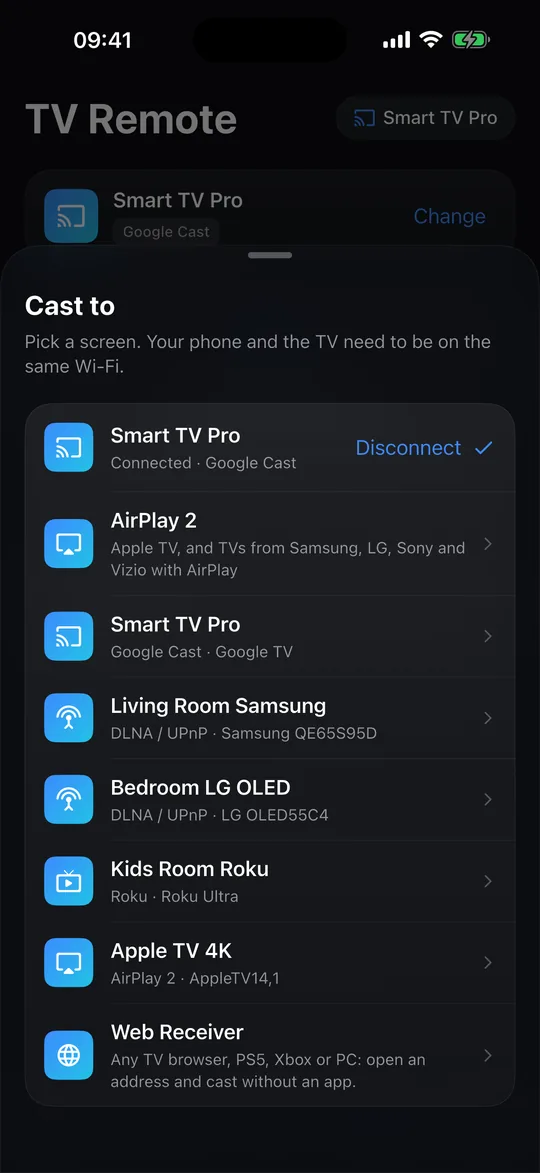
Vantix Cast does not mirror the screen: the TV plays the video in full quality while you keep using the iPad. It cannot cast DRM-protected services such as Netflix or Disney+; use their own apps. Local photos and files are served from the iPad, so keep the app open while they play.
HDMI cable vs AirPlay vs Vantix Cast
The three ways side by side.
| Way | Works with | What the TV shows | Needs |
|---|---|---|---|
| HDMI adapter | Any TV with an HDMI port | The whole iPad screen | A USB-C or Lightning adapter and an HDMI cable. No Wi-Fi. |
| AirPlay 2 | Apple TV, AirPlay 2 TVs from Samsung, LG, Sony and Vizio, some Roku devices | The whole screen (Screen Mirroring) or just a video | Same Wi-Fi. Built into the iPad. |
| Vantix Cast | Chromecast, Google TV, DLNA TVs (most Samsung and LG), Roku, AirPlay 2 | The video, photo or file you pick, not the screen | Same Wi-Fi and the Vantix Cast app |
| Vantix Cast Web Receiver | Any screen with a browser: Fire TV (Silk), TV browsers, consoles, computers | The video, photo or file you pick | Same Wi-Fi, vantix.tv/receiver open on the TV, the 5-digit TV code |
AirPlay support varies by TV model and year; check your TV's settings or manual. Copy-protected video may not play over any of the three.
Why can't I connect my iPad to my TV?
Check these in order. Most failures are the network or a setting on the TV, not the iPad.
- Same Wi-Fi. The iPad and the TV must be on the same network. A guest network, a router that isolates devices, or a VPN on the iPad hides the TV.
- The TV supports the method. Screen Mirroring only lists Apple TV and AirPlay TVs. A Chromecast, a Fire TV stick or an older smart TV will not appear there; use a cable or a casting app.
- AirPlay is on. On Samsung and LG TVs, AirPlay can be switched off or set to ask for a code every time. Check the TV's AirPlay settings.
- Local Network permission. iPadOS asks before an app may look for devices on your network. If it was declined, the app finds no TV. Turn it on in Settings › the app › Local Network.
- Cable checks. Select the right HDMI input, use an adapter that carries video (some USB-C cables only charge), and unplug and replug the adapter.
- Restart and update. Restart the iPad, the TV and the router, and update iPadOS and the TV's software.
In Vantix Cast, the TV list has a "Can't find your TV?" sheet with the same checks and the Web Receiver as a fallback.
Questions
Can I connect my iPad directly to my TV?
Yes, with a cable. Plug a USB-C to HDMI adapter (iPads with USB-C) or Apple's Lightning Digital AV Adapter (iPads with Lightning) into the iPad, connect an HDMI cable to the TV and choose that HDMI input. No Wi-Fi is needed, and the TV shows the iPad's screen.
How do I mirror my iPad screen to my TV?
On an Apple TV or a TV with AirPlay 2, open Control Center on the iPad, tap Screen Mirroring and choose the TV. If the TV shows a code, type it on the iPad. For a TV without AirPlay, use an HDMI adapter. Casting apps such as Vantix Cast send videos and photos rather than mirroring the whole screen.
Why can't I connect my iPad to my TV?
Usually the iPad and the TV are on different Wi-Fi networks, a VPN or guest network hides the TV, the TV does not support AirPlay or has it switched off, or the casting app was refused Local Network permission. With a cable, check the TV is on the right HDMI input and the adapter carries video, not only charging.
How do I link my iPad to my TV wirelessly?
Put both on the same Wi-Fi. For an Apple TV or AirPlay 2 TV, use Screen Mirroring in Control Center or the AirPlay button in a video. For Chromecast, Google TV, Roku and DLNA smart TVs, use an app with a Cast button or a casting app such as Vantix Cast. For a Fire TV, open vantix.tv/receiver in its Silk browser and cast to it from Vantix Cast.
How do I plug my iPhone into a TV?
The same way as an iPad. iPhone 15 and later have USB-C and work with a USB-C to HDMI adapter. Older iPhones need Apple's Lightning Digital AV Adapter. Connect an HDMI cable from the adapter to the TV and choose that input.
Can I connect an iPad to a Samsung, LG or Fire TV without an Apple TV?
Yes. Many recent Samsung and LG TVs have AirPlay 2 built in. Older Samsung and LG sets usually accept DLNA, which casting apps use. Fire TV sticks have no AirPlay, so use an HDMI adapter on the TV instead, or Vantix Cast with the Web Receiver in the Silk browser.
Vantix Cast plays and casts media you have the right to watch. It does not provide any videos, channels or streams and cannot cast DRM-protected services. Adapter and AirPlay details describe Apple's and TV makers' published behaviour and may change; check your device's documentation. AirPlay, Apple TV, iPhone, iPad and Lightning are trademarks of Apple Inc. Google Cast, Chromecast and Google TV are trademarks of Google LLC. Roku is a trademark of Roku, Inc. Amazon and Fire TV are trademarks of Amazon.com, Inc. or its affiliates. Samsung, LG, Sony and Vizio are trademarks of their owners. Vantix is not affiliated with any of them.